
Welcome to your charts editor page!
This is a Demo Page.
Click on the “Customize” button to start editing available sample templates.
💡Bookmark this page for future use.
Click “Customize” to access the editor.
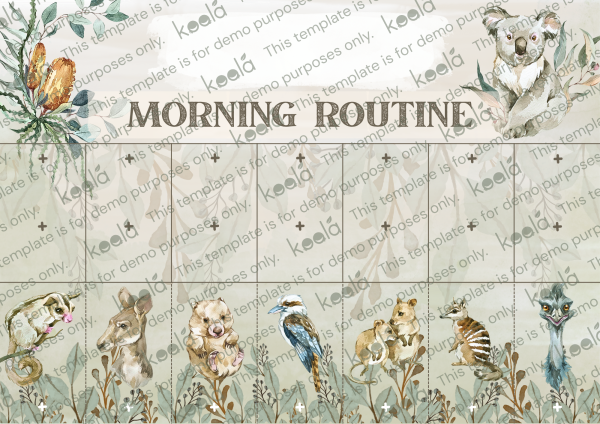
Template Charts Demo
Click “Customize” to access the editor.
This is a Demo Page.
Click on the “Customize” button to start editing available sample templates.
Watch the guide video below before you customize:
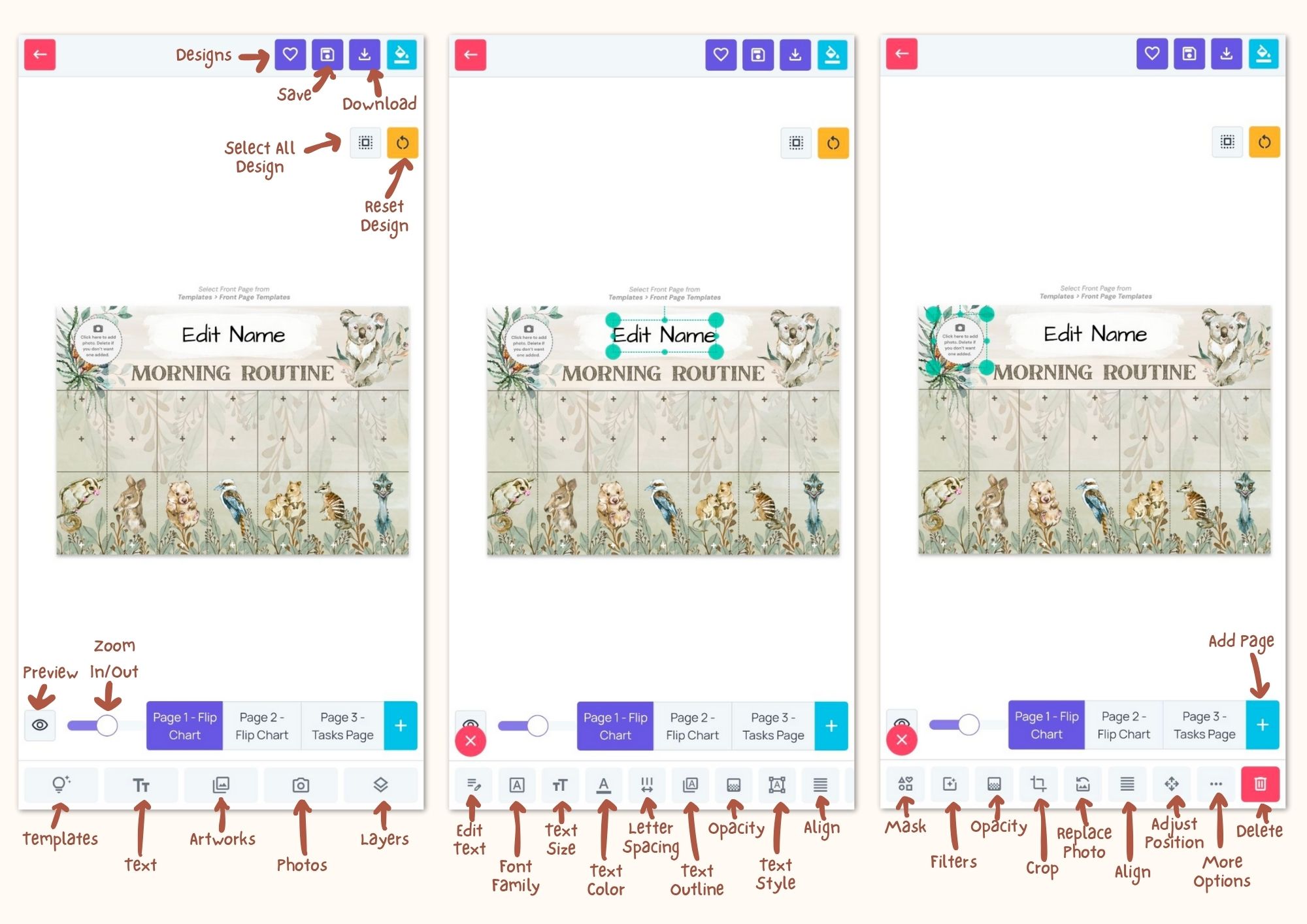
Example and Guide for the editor on mobile:
Note: We highly suggest to use your desktop/PC for easier editing.
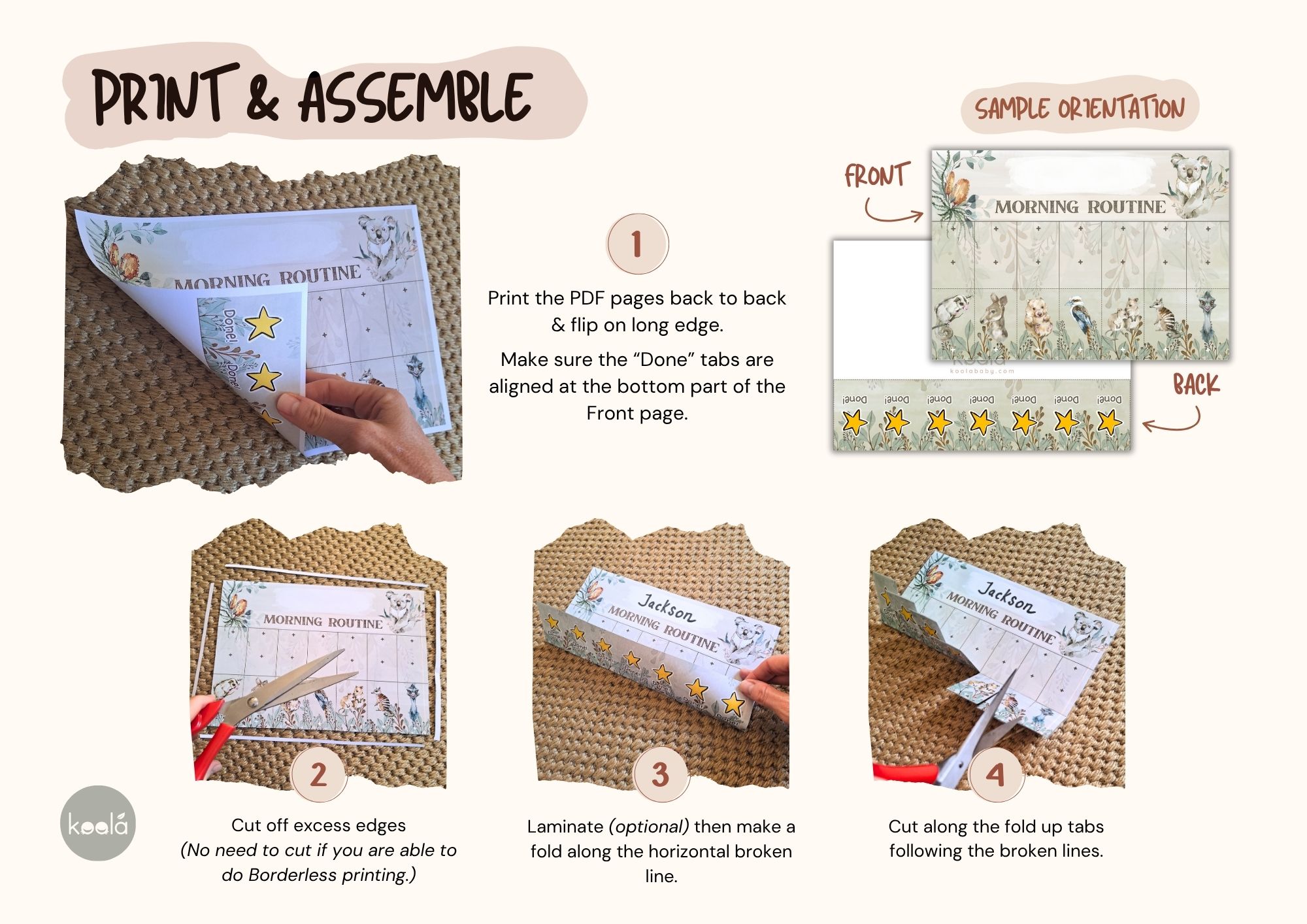
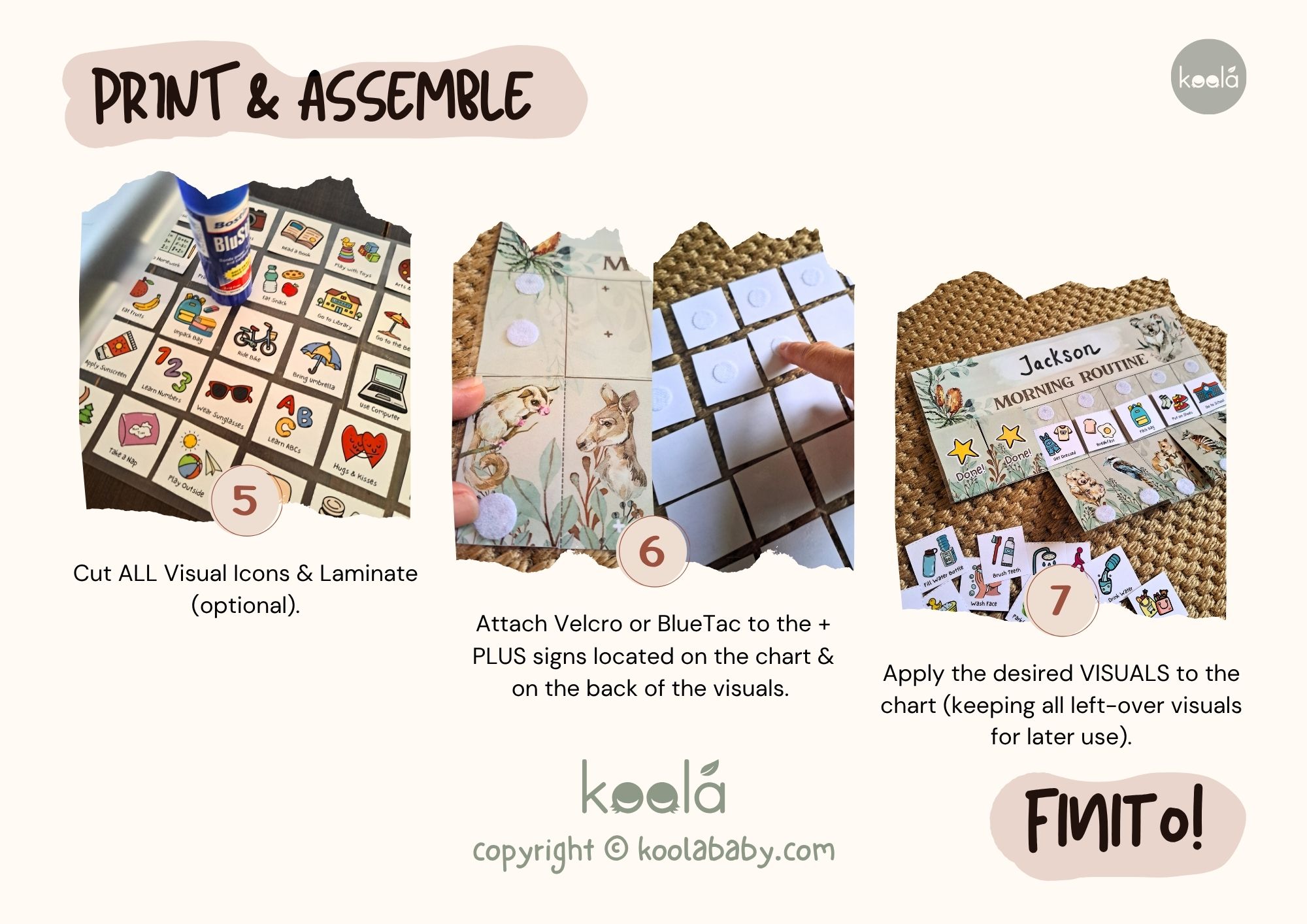
Printing & Assembling Guide
Tips on How to Print Back-to-Back
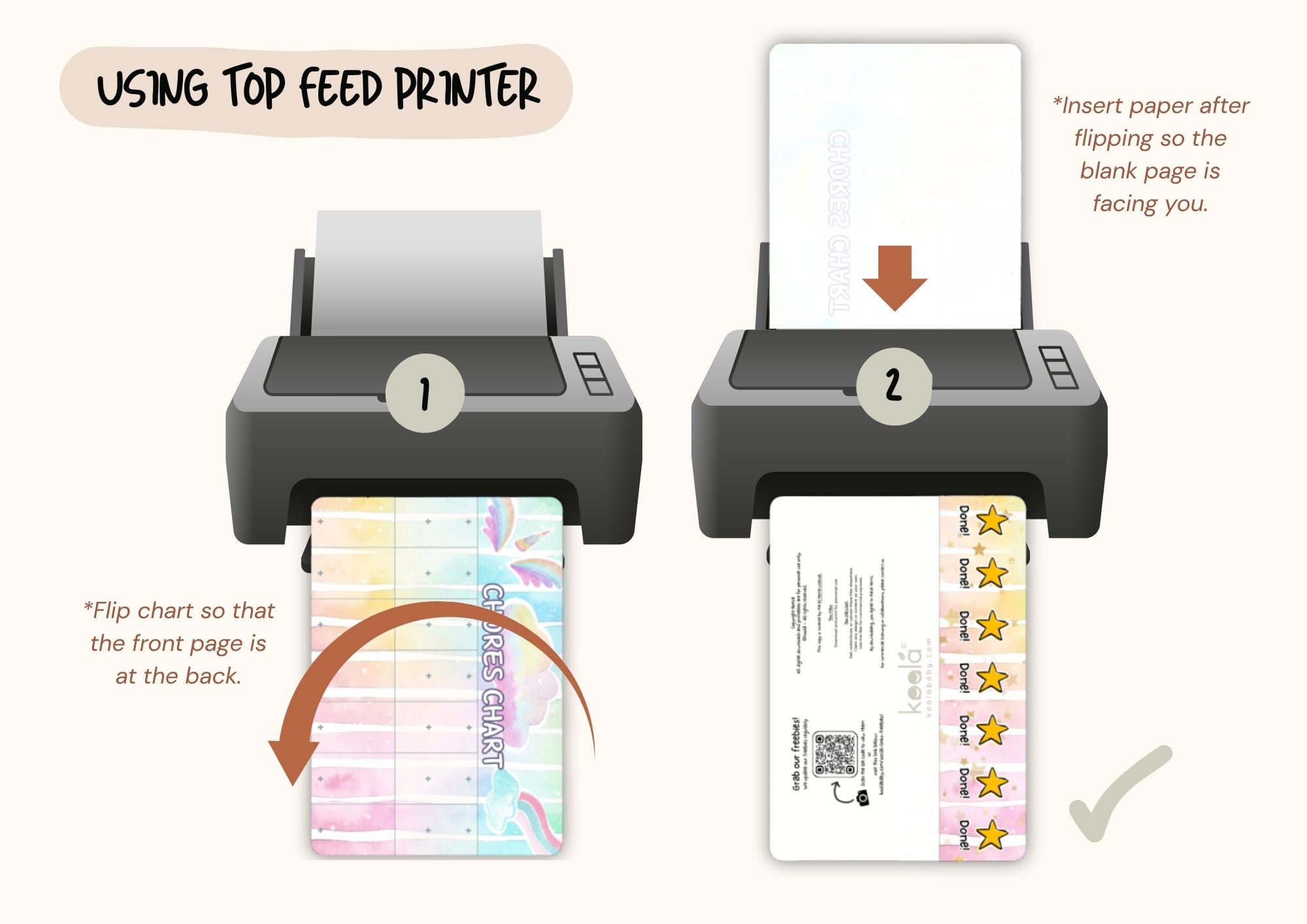
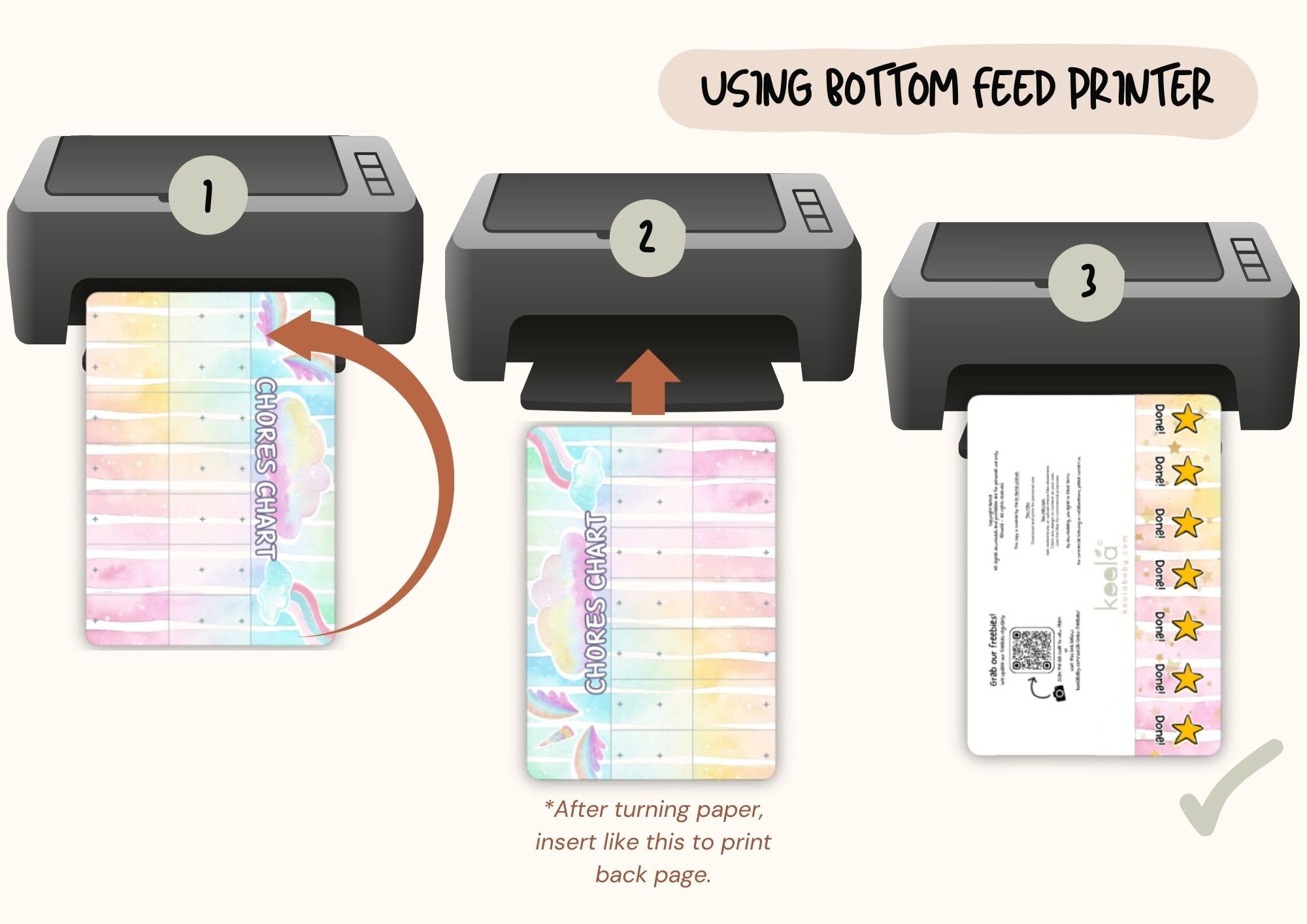
Note: The examples above might not be the same as how your printer prints. Do a test print first with minimal elements to know how your printer prints back-to-back.
FAQs
Content is password protected. Where can I find the password?
After you purchase our charts, you should get a link to download included pdfs or receive an email containing a pdf link to download. This contains the link to the content along with the password to view it.
How do I open the editor?
To start editing your personalized charts, simply click on the “Customize” link. This will open the editor and you can start editing! Watch the video provided above to see how to use the editor.
Can I add more pages to the template?
Yes, you can add more pages to the template. You can add up to 12 in addition to the initial pages provide. Watch the video provided above (2:10) to see how to add more pages.
Can I save my designs and return to them later?
Yes, You can click on the “Save” button at the top right section of the editor page if you want to save your design first before you download. Add a title to your design and add your best email before saving. To access your saved designs, just click on the “Designs” button and add in your email to view your saved designs. Watch the video provided above (1:32) to see how to Save and access saved designs.
Can I edit templates using my mobile phone?
Yes, you can edit templates using your mobile phone, but we highly recommend to use your desktop/PC for editing as some features on mobile might not work due to compatibility issues.
How do I download my finished templates?
After you are done and happy with your templates, click on the “Download” button at the top right corner of the editor. As of this time, you are able to download each page separately as pdf files. Upon saving your pages, make sure to name them accordingly so you know which page is which. Watch the video provided above (2:33) to see how to Download your designs.
How can I combine all the pages after download?
As of this time, you are not able to download your designs in a single pdf file. If you want to combine them in one pdf file, you can use Adobe Acrobat’s feature or use an external tool.
What paper size should I use to print?
Our templates are based on A4 size paper (297mm x 210mm | 11.69″ x 8.27″) but they can also fit in US letter size paper (279mm x 216mm | 11″ x 8.5″).
The design gets cropped when I print, what should I do?
If the design gets cropped when you print, make sure to set the print Scale to “Fit” or “Fit to printable area”. The preview should show a white space on all sides.
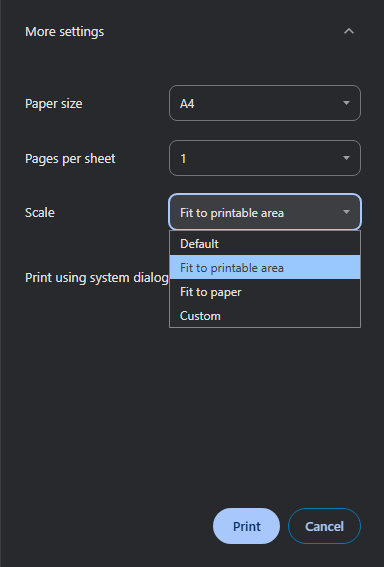
Note: The sample in the screenshot provided is based on Google chrome settings. Other print settings might differ in options.
Where do I contact you in case I need help?
Feel free to contact us through our main contact page and we’ll help you with any concerns you have.
Copyright Koola 2025 – All rights reserved
Resale of products generated is strictly prohibited. Report any breaches of copyright law to : [email protected]